One fader for every app.
Turn the call up and the game down. Give each app its own volume, its own equaliser and its own speakers, from the menu bar.
Version 0.2.4 (17)Release notes
Watch it play
The app's own panel and equaliser, replayed step by step. Point at a step to jump to it.
One fader per app
Click the MACvol icon in the menu bar. Every app that is making sound gets its own row and its own fader, under the system volume.
Drag Safari down to 25% and bring Keynote up to 100%. Only those two apps change; Music and the system volume stay where they were.
Press the speaker stamp on the Messages row. That app goes quiet and everything else keeps playing.
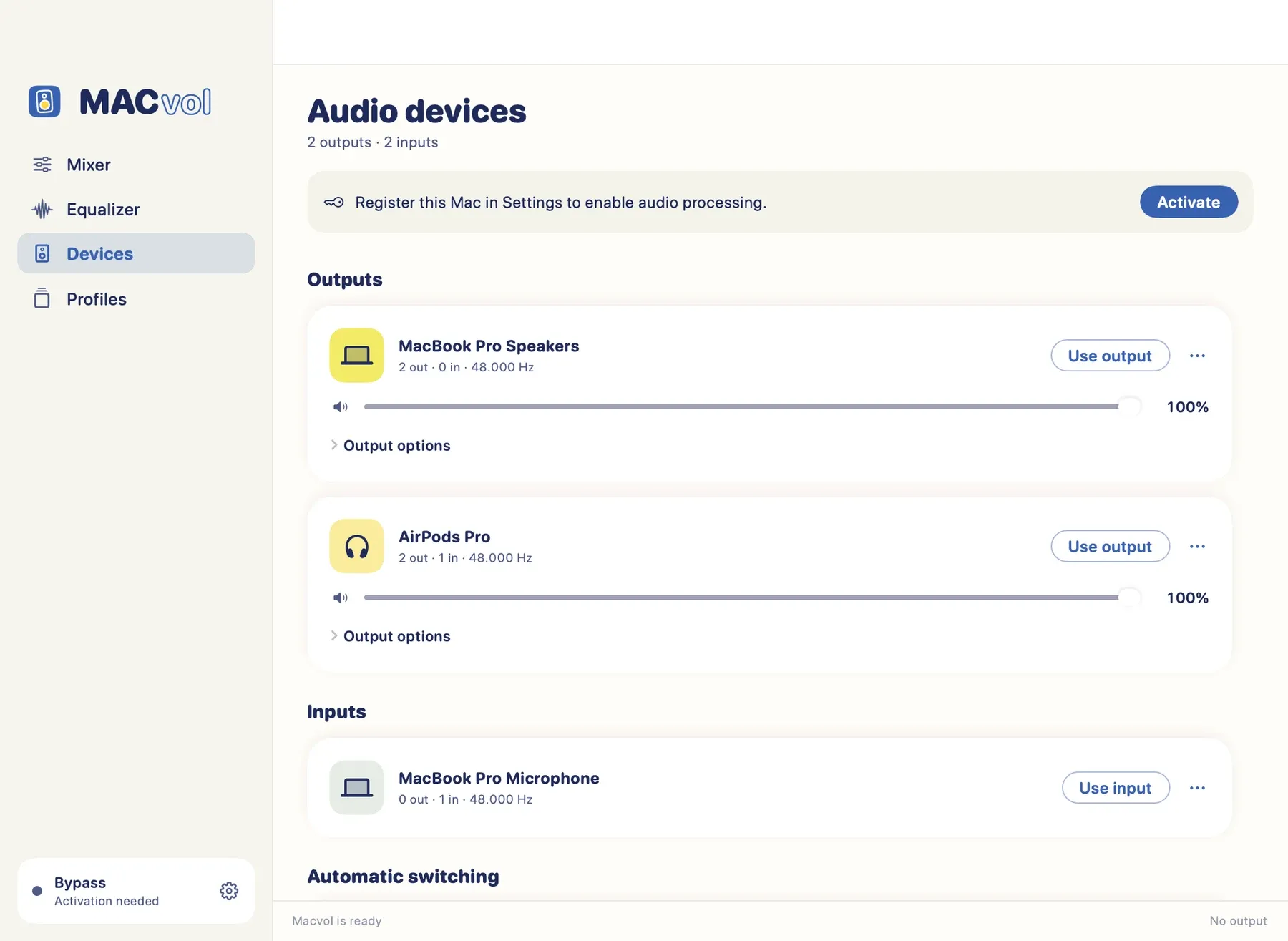
Open the ⋯ menu on the Music row, choose Output routing and pick the headphones. Music moves there; the other apps stay on the speakers.
An equaliser per app or device
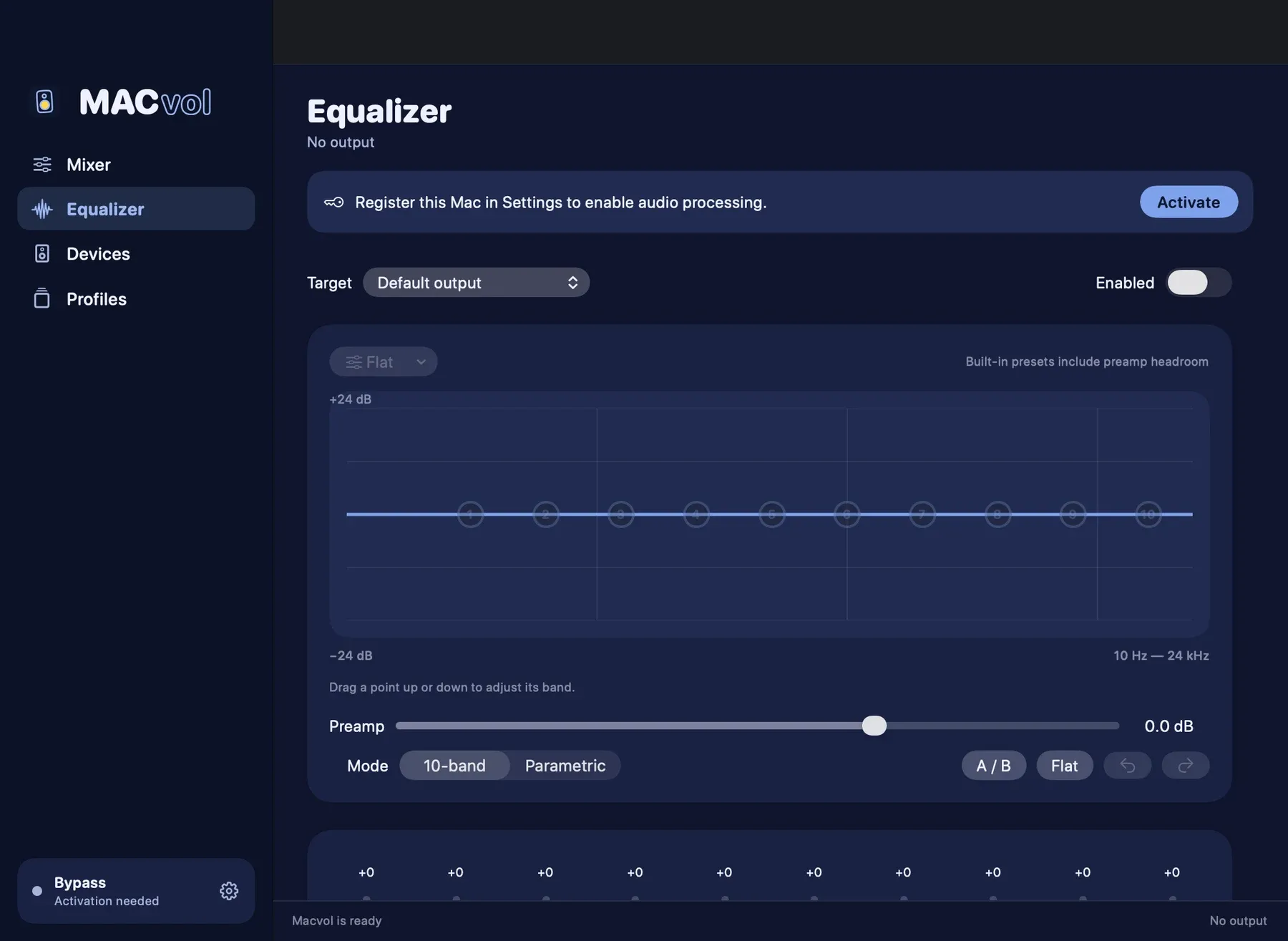
Open Equalizer and set the target: the default output, one device, or a single app. Here it is Music only. Then switch the EQ on.
Choose Vocal Boost from the 27 built-in presets. All ten bands move at once, and the preamp drops so the louder bands do not clip.
Drag point 9 up to lift 8 kHz by 7 dB. The curve follows your hand, the band fader below moves with it, and the preset name becomes Custom.
Type a name and press Save. Your curve now sits under My presets in the same menu, ready for any app or output.
Ten bands, 27 presets
Graphic or parametric, per app or per output, with undo and A/B. Import an AutoEQ or Equalizer APO file to correct your headphones. Built-in presets leave headroom so nothing clips.
Drag the sliders. The curve shapes here are for the demo.
What else is in the shop
Every app, its own level
Volume, mute, solo, balance and mono for each app. Boost a quiet one past 100%. Pin the ones you always want in the mixer.
Send it where you want
Music to the speakers, the call to your headphones. Set which device wins when several are plugged in.
It keeps things safe
A lookahead limiter catches peaks. Priority ducking lowers the rest when the app you chose makes sound. Safe volume caps the top.
Profiles that switch themselves
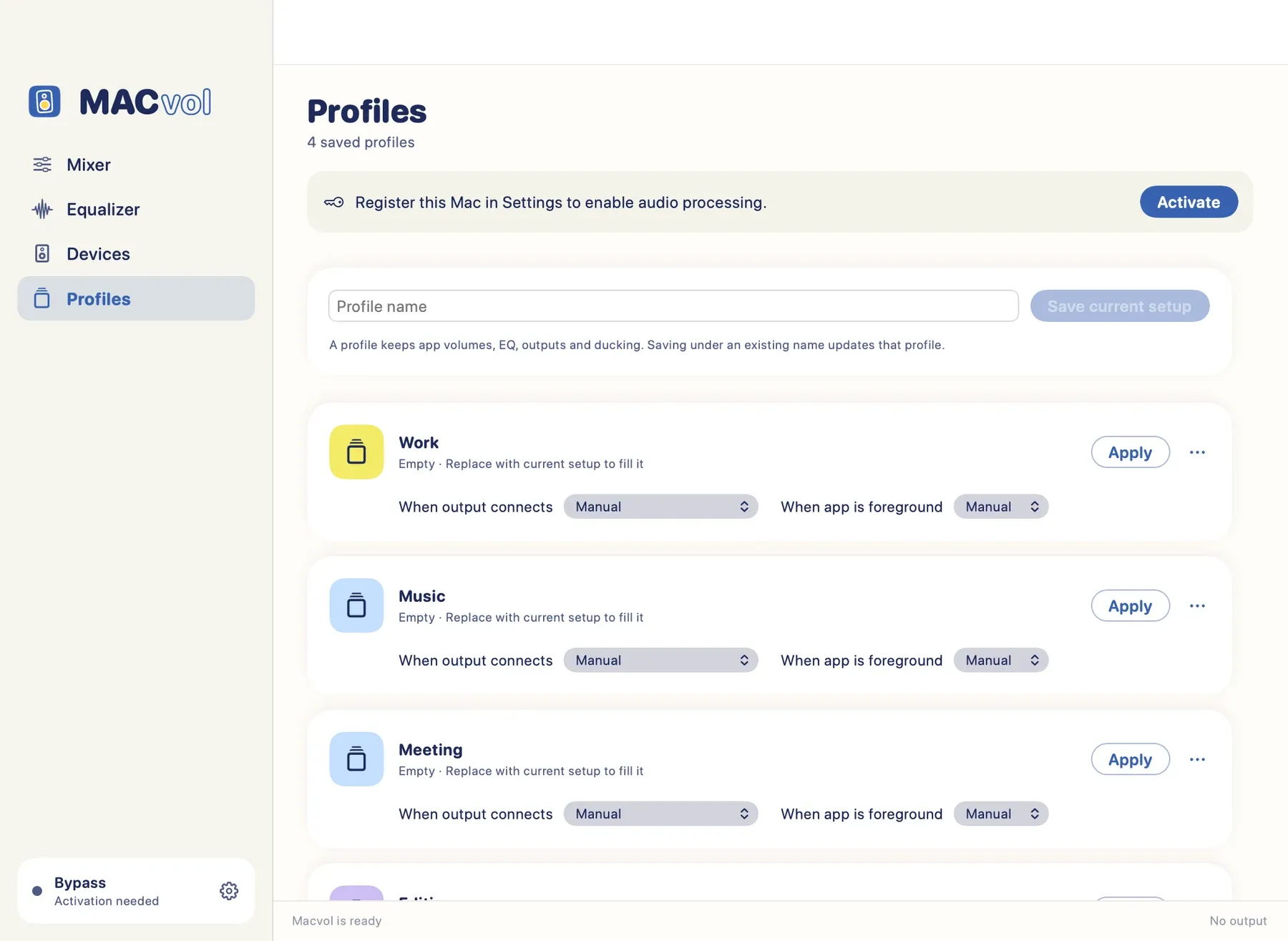
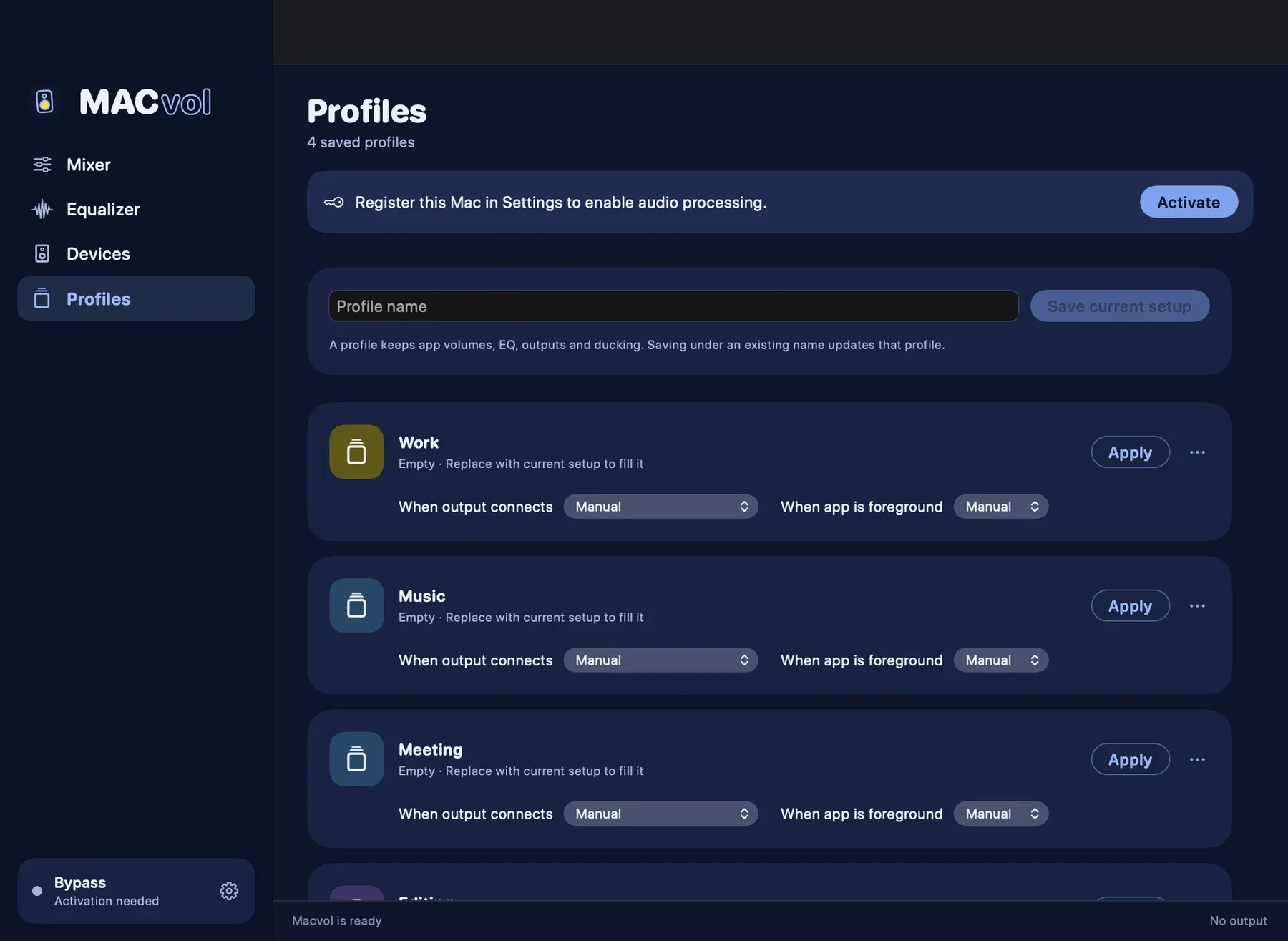
Plug in the headphones and the Work profile comes on. Unplug them and everything goes back to how it was.
Keys and the scroll wheel
Your own hotkeys, the media keys, and scrolling on the menu-bar icon to change the output volume.
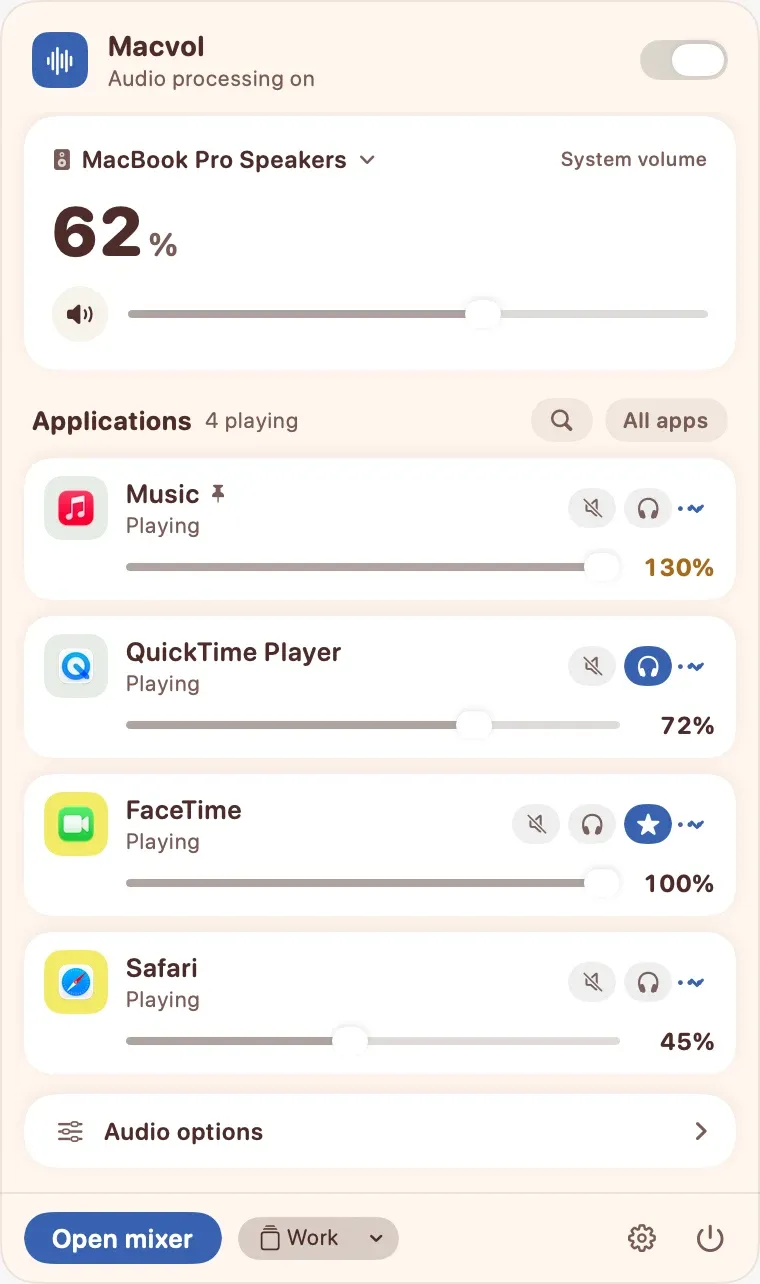
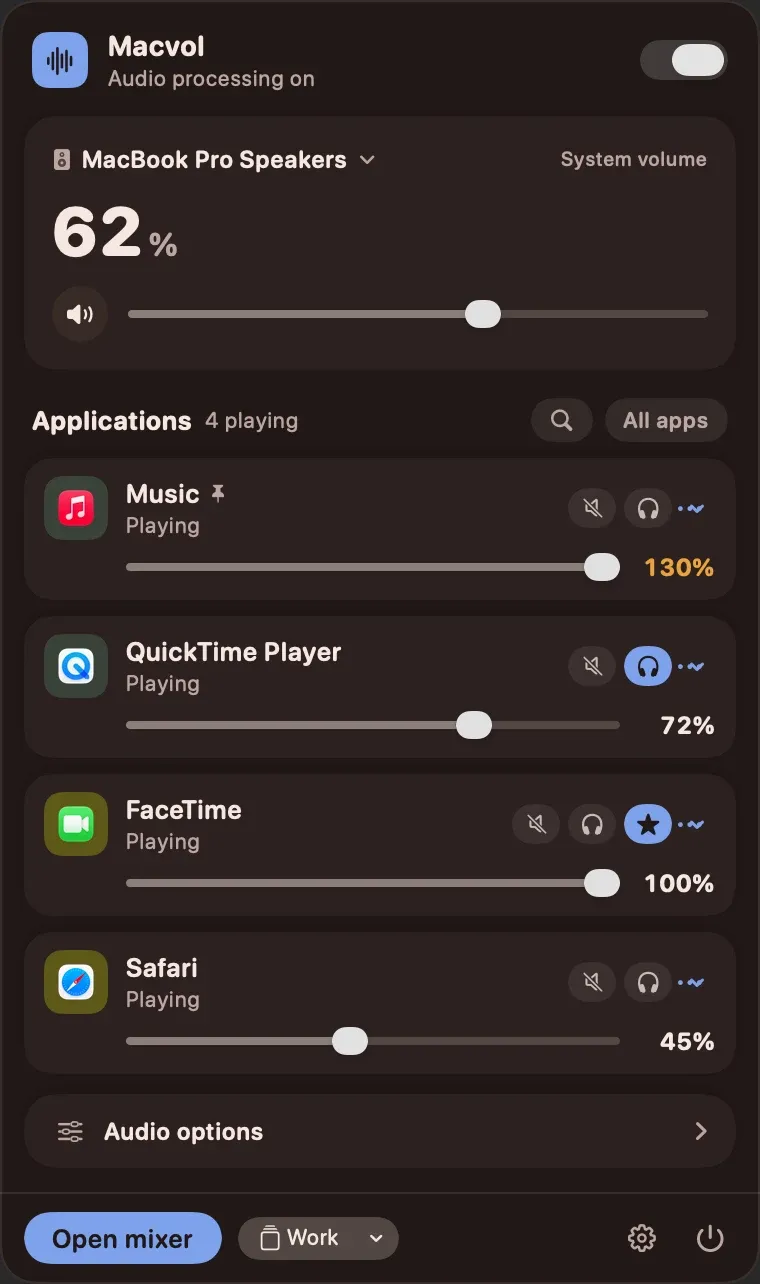
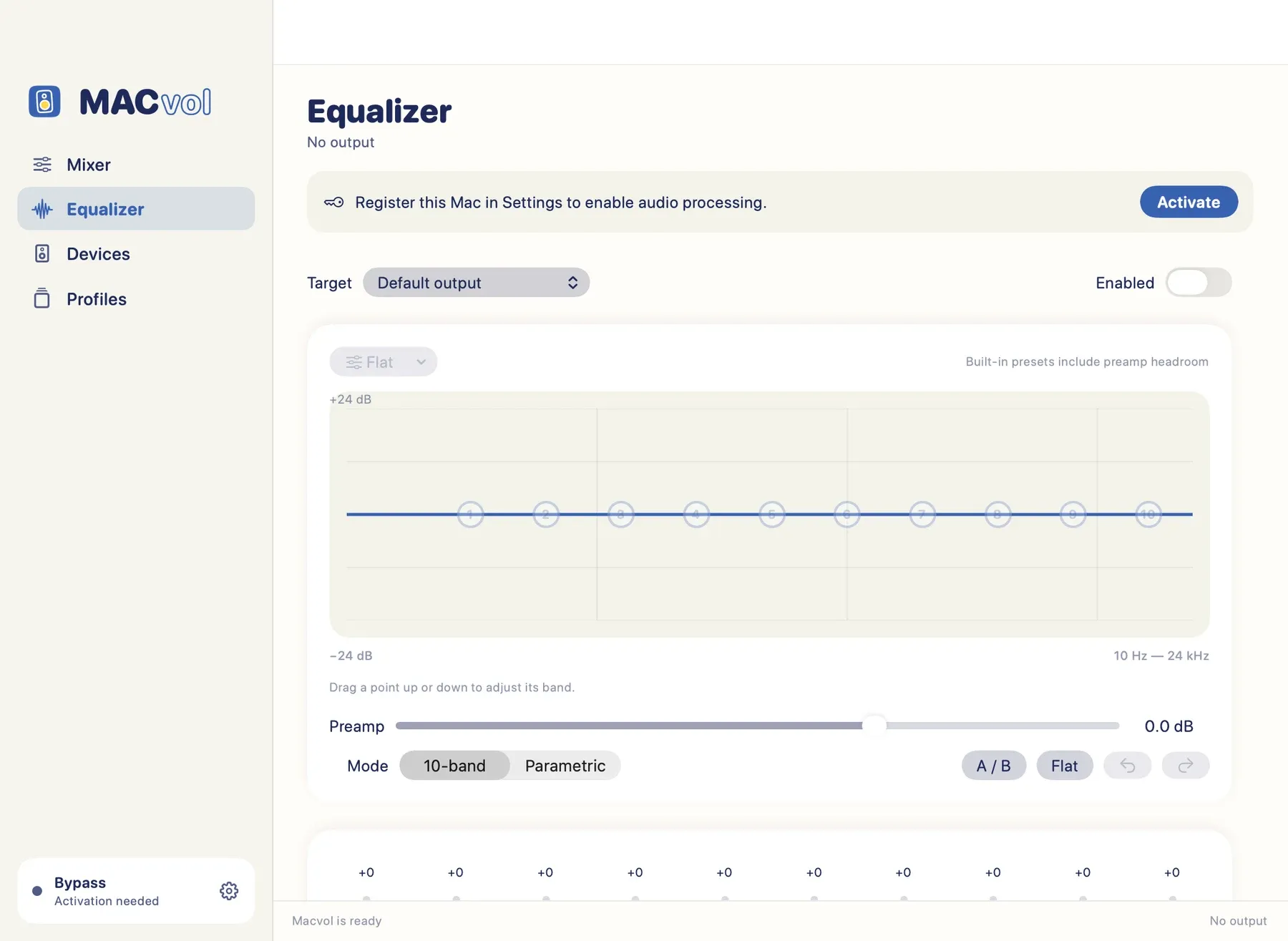
The app today
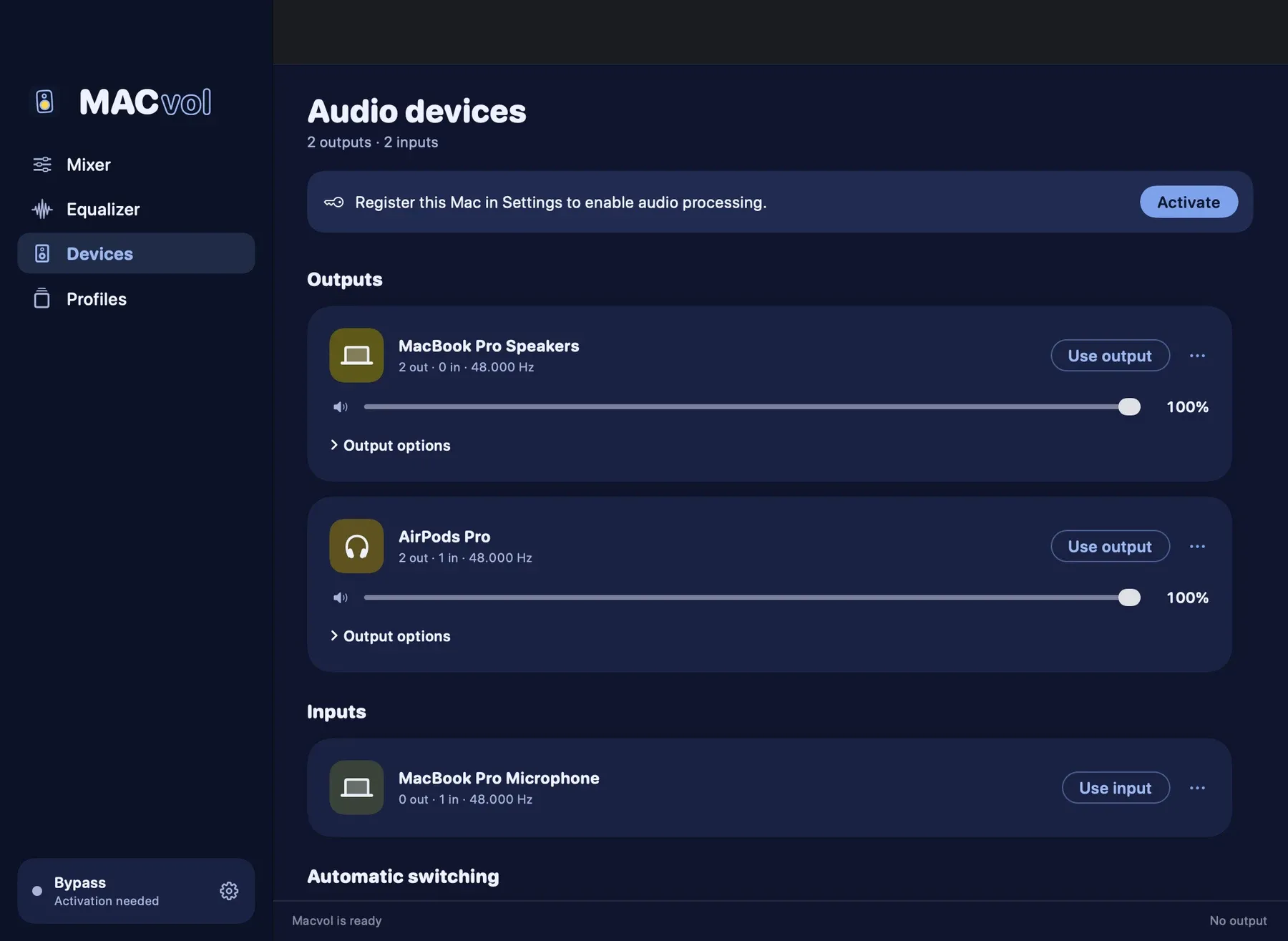
Renders from the current build using a test fixture, so some controls show grey where the live window is cobalt. The hand-drawn zine look on this page is the direction; the app has taken its first steps there.
Good to know
- macOS will ask for the "System Audio Recording" permission. That is how macOS lets an app adjust other apps' sound. MACvol processes it and never records it.
- It installs no driver and no virtual audio device.
- Not every audio interface and Bluetooth device has been tested. Routing depends on your hardware and macOS.
- The Cinema preset shapes tone; it is not surround sound. Loudness is an EQ curve, not a compressor.
- The app must be activated before it processes any audio.
Privacy
Sound is processed in memory. It is never written to disk, sent anywhere or analysed. No analytics, no ads. Diagnostics stay on your Mac unless you export them.
For your AI assistant
A command-line tool and a local MCP server with more than 35 tools. Every action in the app has a matching tool; a test fails if one is missing.
$6, once.
Pay once and keep the app. Every purchase includes one year of updates. After that you keep the version you have, forever, and you can renew any time to get the newest.
- Day oneYou pay once
- 1 yearEvery update is included
- After thatStill yours, still runs. Renew for the newest.
Total
Prices in US dollars. Tax is added at checkout.